Paving estimates and quotes on iPhone
Finish the quote
before the day is over.
Pave Measure keeps the customer details, measurements, material quantities and your rates in one job. Turn a site visit into a properly costed quote without rebuilding it all from notes when you get home.
Pave Measure for iPhone is coming soon. The website calculators are ready to use now.

Made for the whole quoting job
The site visit is only
half the work.
You have walked the driveway, discussed the job and taken the measurements. You still have quantities to calculate, supplier rates to check, labour to price and a quote to write.
With Pave Measure, the work you record on site becomes the starting point for the estimate and PDF quote. You copy fewer details between notes and spreadsheets, and you have the original job to hand if the customer asks for a change.
Write it down once.
Keep the customer, address, measurements and notes with the job. When it is time to quote, the information is already there.
Price the whole job.
Add materials, labour, plant and overhead, then check your markup or gross margin before you settle on the customer price.
Know exactly what you sent.
Share the finished PDF from your iPhone and reopen that revision when the customer wants to discuss it.
From site visit to customer quote
Six steps. One
complete job record.
The photographs below feature a fictional contractor. The app screen is real.
Get the details down while they are fresh.
Create a job with the customer’s details, site address and a description of the work. Find the address with Apple Maps or type it in. Add your site notes and photographs alongside the measurements.
On a supported device, you can dictate the customer name, address and requested work in English. Pave Measure fills in the fields for you to check before anything is saved.
The payoff: less typing after the visit, and no wondering which set of notes belongs to which job.
Start with a measurement you have checked.
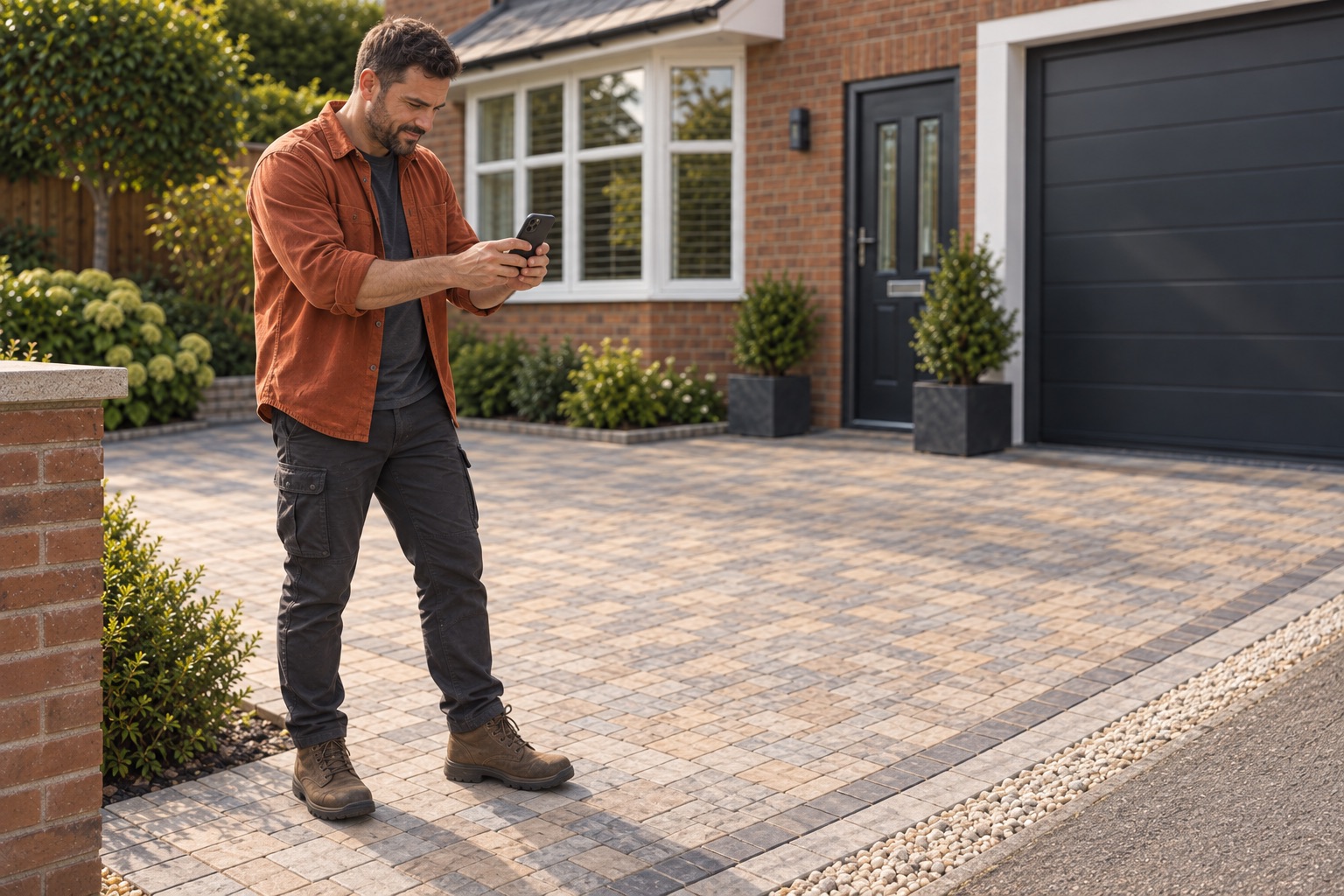
Enter a known area or a set of dimensions. On a supported iPhone, you can also place the boundary corners with AR. Check the plan area and any exclusions before using the measurement in your estimate.
Manual entry works well when you already have measured dimensions. AR gives you another way to capture the boundary, but you should always verify its result independently.
The payoff: you can return to the measurement behind the quantities, not just the final number.
Turn area and depth into quantities.

Add each material layer with its compacted depth, density and ordering allowance. Pave Measure does the arithmetic and shows how it reached the quantity.
Use assumptions that suit the job and check them with your supplier. They stay with the estimate, ready for you to review before ordering.
The payoff: fewer repeated calculations and a figure you can trace back to its inputs.
Try the asphalt quantity calculatorYour rates. Your costs. Your call.

Add your material rates, labour, plant and overhead. Choose markup or gross margin, then check the tax and final customer price before saving the estimate.
You can set a default currency for new jobs or choose one for a particular estimate. Existing jobs and issued quotes keep their original currency. Changing it never converts your rates behind the scenes.
The payoff: you can see exactly what the price covers before you commit to it.
Send a quote that is easy to understand.

Check the scope, exclusions and total, then create the PDF. Preview the finished document and share it from your iPhone through the channel you normally use.
Each issued revision keeps its own assumptions. If the job changes later, you can see exactly what the earlier price covered.
The payoff: the quote comes directly from the job you priced, with a saved copy for the follow-up call.
Find the job when the phone rings.

The Dashboard shows recent work. Quotes holds your issued PDFs. Saved Jobs lets you search, filter and archive the rest. Open the customer’s record to see the measurements, notes and revisions in one place.
You can also export a full data archive from Settings and keep it wherever you store your business backups.
The payoff: when an old customer calls, you are not digging through several apps and folders to work out what happened.
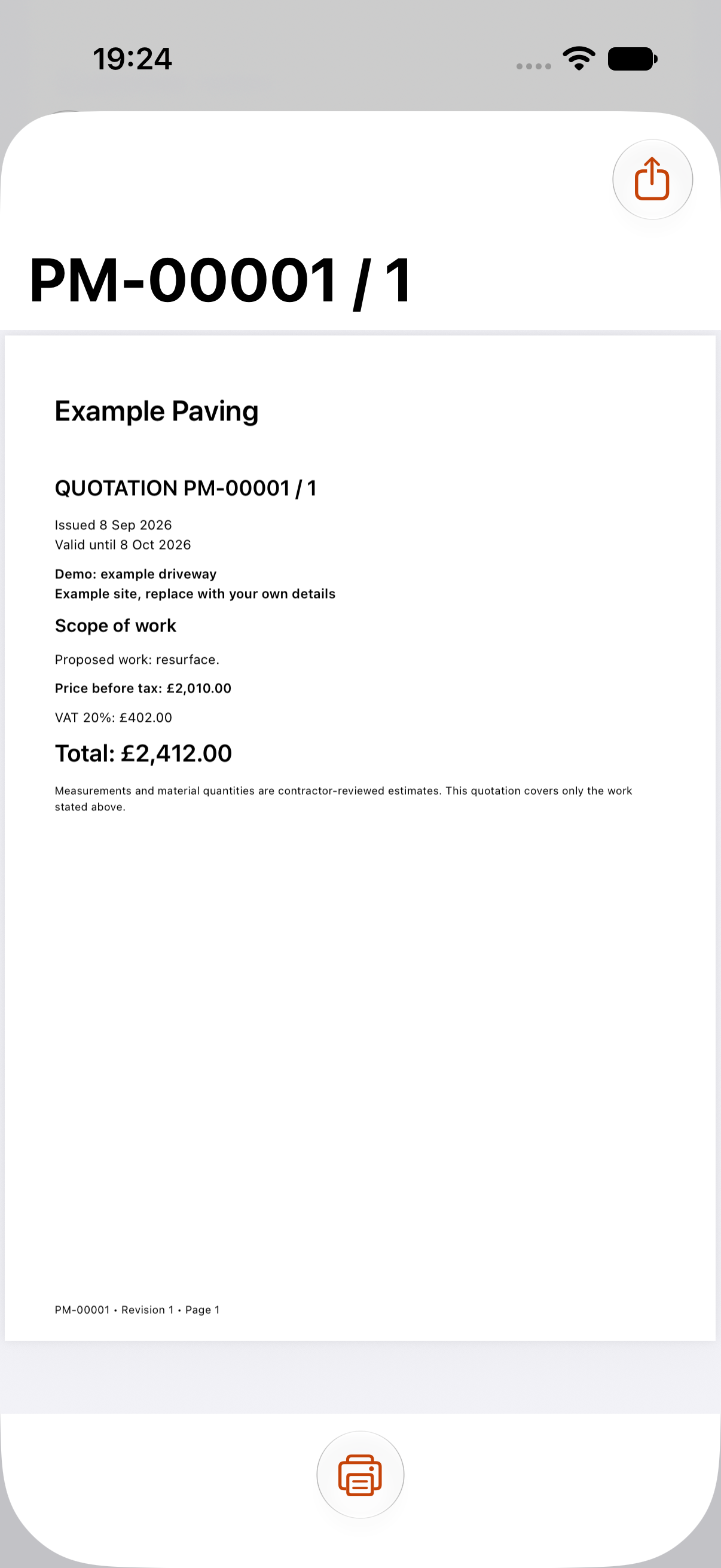
Inside the app · Example job
A quote worth putting
your name to.
Your customer gets a straightforward written quote. You keep the measurements, costs and assumptions behind it, which makes the price easier to explain and changes easier to handle.
Preview the finished PDF before you share it. The issued revision remains with the job afterwards.
This is an actual iOS 27 simulator capture using a demo job. The amount is an example, not a suggested rate.
A working day with Pave Measure
Do the groundwork
while you are on site.
At the visit
Record the customer and the work they want. Add photographs, notes and checked measurements while the site is still in front of you.
When you price it
Open that same job, add your supplier assumptions and costs, then read the price and scope together.
When they call back
Open the issued quote and see what you included before discussing any changes.
The practical questions
What you should know.
Who is Pave Measure for?
Pave Measure is for paving and asphalt contractors who measure sites, calculate material quantities and prepare customer quotes. It is particularly useful for an owner or estimator who wants to take the job from site notes to price on an iPhone.
Where does it save me work?
Customer notes, measurements, material calculations, costs and the written quote all start from the same job. That means less copying between places, and saved revisions are easier to find when someone calls back. We have not yet measured the time saved in contractor field trials, so we will not pretend there is a magic number.
Do I need LiDAR or AI to use it?
No. You can enter measurements, price work and create quotes without Apple Intelligence. AR, LiDAR and on-device assistance depend on supported hardware and availability. The app currently requires iOS 27.
Can I work without a signal?
Measurements, estimates and PDFs are stored locally. Address searches and purchases need an internet connection. Dictation needs supported on-device English speech recognition, but you can always type instead.
Does a photo measure the driveway for me?
No. One photograph cannot provide dependable dimensions. Enter measurements you have checked, or use supported AR capture and verify the result independently. Suggested site observations need your judgement too. We are still validating physical AR accuracy and field use.
Can I use my own prices?
Yes. Enter your material rates and other costs, choose markup or gross margin, and review the tax. You decide the construction assumptions and final price. Pave Measure does not supply guaranteed local rates or decide whether a specification is right for the site.
Where are my customer details stored?
Job records and attachments stay on your device. The current app has no Pave Measure account or cloud sync. You decide where to send PDFs and exported archives, and you should keep your own backup in case the device is lost or replaced. Read the privacy information.
Can I download it now?
Not yet. Pave Measure for iPhone is coming soon, but there is no public download yet. You can use the free asphalt calculator here today. We will publish availability and confirmed purchase details when the release is ready.
Advice you can use on the next job
Measure carefully.
Quote properly.
Read practical guides on site visits, measurements, material quantities, pricing and customer quotes.
Measure a driveway
Break down simple shapes, handle exclusions and follow a worked example.
Calculate asphalt tonnes
Work from area, depth and density, then add a sensible ordering allowance.
Prepare your quote
Use a practical scope outline and run the final checks before sending the PDF.
Measure. Price. Quote.
Finish the paperwork
while the job is fresh.
Pave Measure is being built for contractors who would rather finish a considered quote than spend the evening piecing one together.
Use the free asphalt calculatorNo login required. Enter your own area, depth, density and ordering allowance.